

thumbnail
thumbnail
thumbnail

4. 로더, OUTPUT

일단 로더에 관한 개념을 알아보자.

css라는 파일을 만들어보자.

css 파일을 만들어 link 하기 위해서 css 파일 부터 만들어야 하고, 그 후 link 태그를 추가해 외부 스타일시트를 가져오도록 하는 것이 일반적이다.

하지만 이렇게 되면 css 파일 하나당 또 한번의 connection 을 해야 하게 되어 기존의 js 를 묶어 한번에 처리했던 의미가 퇴색되게 된다. 이를 또 webpack이 해결해준다.

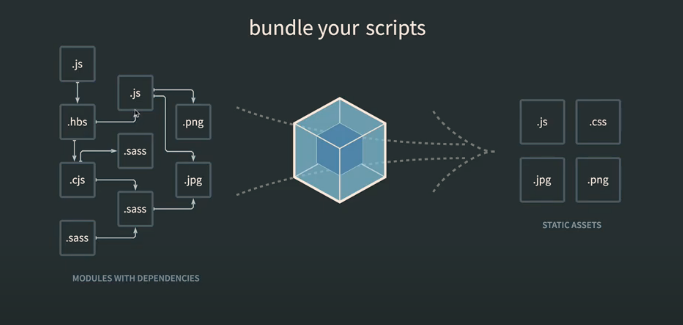
다시 한번 위 그림을 보자.

webpack 이 무엇인가를 바로 알 수 있게 해주는 그림이다. 저기 보면 sass 나 css, png 조차도 번들링해주는 것도 알 수 있다. 이 역할을 해주는 애가 바로 로더이다.

미리 말하겠지만 사회나가서 webpack을 얼마나 잘 알고있냐를 판가름하는 것이 이 "로더" 를 얼마나 잘 알고있냐가 될 정도로 중요한 놈이다.

webpack의 guide 페이지로 가면 Asset Management 라는 탭이 있다. Asset 이란 자산으로 우리가 코딩한 js, css 파일들을 의미한다. 여튼 여길 보면 로더를 사용하기 위해서 다음과 같은 명령어를 치라고 나와있다.

npm install —save-dev style-loader css-loader

그 후 webpack.config.js 파일을 다음과 같이 수정하라고 되어있다.

  • css-loader

const path = require('path');

module.exports = {
  mode: 'development',
  entry: './src/index.js',
  output: {
    path: path.resolve(__dirname, 'dist'),
    filename: 'index_bundle.js'
  },
  module:{
    rules:[
      {
        test: /\.css$/,
        use:[
          'css-loader',
        ],
      },
    ],
  },
};

저 코드 중 css-loader 를 추가함으로써 webpack을 동작시켯을때 확장자가 css파일을 만나게 되면 로더가 알아서 해당 css 파일을 로더 안으로 로드시켜주게 된다.

// src/index.js
import hello_word from './hello.js'; 
import world_word from './world.js';
import css from './style.css';
document.querySelector('div#root').innerHTML = hello_word + ' ' + world_word;

index.js 파일을 다음과 같이 바꿔준다.

그 후 번들링 한 이후 실행시켜주게 되면 css 라는 변수에 style.css 안의 내용들이 리스트화되어 들어가있는 것을 확인 할 수 있다. 즉, 이 리스트 요소를 컨트롤 해서 css를 디자인할 수 있는 것이다.

허나 직접 리스트 요소들을 사용할 필요 없이 이 적용을 자동화해주는 로더가 있다.

  • style-loader

바로 style-loader 이다. 이 로더를 추가해준 webpack.config.js 파일을 다음과 같다.

// webpack.config.js
const path = require('path');

module.exports = {
  mode: 'development',
  entry: './src/index.js',
  output: {
    path: path.resolve(__dirname, 'dist'),
    filename: 'index_bundle.js'
  },
  module:{
    rules:[
      {
        test: /\.css$/,
        use:[
					'style-loader',
          'css-loader',
        ],
      },
    ],
  },
};

즉 정리하자면 css-loader 는 css 파일을 읽어와서 그것을 webpack으로 가져오는 녀석이고, style-loader 는 그렇게 가져온 css 코드를 web page 안에 style 코드로 주입시켜주는 놈이다. 거의 짝꿍인 것이다.

여튼 이런식으로 config 파일을 수정해주고 다시 실행해주게 되면 index_bundle.js 하나만 connection 하여 가져오게 되었는데 css, js 모두 적용된것을 확인할 수 있다.


webpack.config.js 에 추가했던 코드 중에 다음 코드를 보자.

module:{
    rules:[
      {
        test: /\.css$/,
        use:[
					'style-loader',
          'css-loader',
        ],
      },
    ],
  },

저기서 test: /\.css$/ 라는 문구가 있는 것을 볼 수 있다. 저 코드의 의미는 .css 로 시작하는 파일이 발견되면 밑의 로더들을 통과시켜 처리해라 라는 조건형식의 의미이다.

이 때 중요한 것은 밑쪽에 적혀있는 loader 일수록 늦게 시작된다는 것이다. 즉 밑에서 부터 차근차근 사용되는 " 체이닝" 이 된다는 것이다.

이러한 것을 적용시켜 이미지 로더, 폰트 로더 등등 여러가지 로더가 있다. 이러한 로더 중 official 하게 제공되는 로더, 커스텀화된 로더 들이 있으니 알아서 찾고 사용하면 될것이다!!!


이제 로드를 한 이후 어떻게 최종적인 파일의 이름 및 결과를 만들어낼 것인가를 알아보자. 즉, 하나로 합칠건지 쪼갤건지 설정하는 방법에 대해 알아보자.

OUTPUT 파트를 좀더 알아보자.

여러가지 엔트리 파일이 있는 경우 어떤식으로 config 파일을 처리해야 할까?

// webpack.config.js 파일
const path = require('path');

module.exports = {
  mode: 'development',
  entry: {
    index:'./src/index.js',
    about:"./src/about.js"
  },
  output: {
    path: path.resolve(__dirname, 'dist'),
    filename: '[name]_bundle.js'
  },
  module:{
    rules:[
      {
        test: /\.css$/,
        use:[
          'style-loader',
          'css-loader',
        ],
      },
    ],
  },
};

config 파일을 다음과 같이 바꿔주자.

추가된 코드는 entry 부분이다. 객체화 시켜 2개의 속성으로 구분하여 나누었다. 그 후 output 부분도 바꼈는데 [name] 으로 나타내서 저 부분에 index 또는 about 값이 들어가잇는 것을 확인할 수 있다.

이렇게 output을 두개로 쪼개 나타낼수도 있다.

또 다른 방법으로 하는 것이 많은데 역시 webpack document 를 검색해서 알아보는 것이 좋다. 외울 필요가 없다는 말이다.

참고로 [name], [id], [hash] 등 여러 방법이 있으니 검색해서 알아보자.


'책장 > Webpack' 카테고리의 다른 글

5. 플러그인  (0) 2020.09.27
6. Webpack 참고사항  (0) 2020.09.27
3. 설정파일 도입  (0) 2020.09.27
2. Webpack 도입  (0) 2020.09.27

5. 플러그인

webpack에는 2가지의 확장 기능이 있다.

첫번째는 앞에서 배웠던 로더이고, 두번째는 플러그인이다.

로더는 우리가 가지고 있는 모듈을 최종적인 아웃풋으로 만들어가는 과정에서 사용되는 것이고, 플러그인은 그렇게 해서 만들어진 최종적인 결과물을 변형하는 것이라고 생각하면 된다.

플러그인이 더 복합적이고 자유로운 일들을 할 수 있도록 해준다는 것을 알고 있자.

플러그인은 플러그인마다 사용방법이 제각각 다르다.

때문에 다 배울필요는 없고 하나정도만 사용해보고 그 방법만 숙지하자.


webpack document에 들어가서 플러그인 탭에 들어가면 여러가지 플러그인들이 있는 것을 볼 수 있다. 그 중에서 HtmlWebpackPlugin 을 살펴보자.

코딩 과정에서 html 파일을 자동으로 생성하고 싶거나 template 화 해서 벽돌찍듯이 html 파일을 생성하고 싶을 수 있다.

이 때 저 플러그인을 쓸 수 있다.

플러그인 다운받는 방법은 다음 명령어만 치면 된다.

npm install —save-dev html-webpack-plugin

그리고 webpack.config.js 파일을 다음과 같이 바꿔준다.

// webpack.config.js 파일
const path = require('path');
const HtmlWebpackPlugin = require('html-webpack-plugin');

module.exports = {
  mode: 'development',
  entry: {
    index:'./src/index.js',
    about:"./src/about.js"
  },
  output: {
    path: path.resolve(__dirname, 'dist'),
    filename: '[name]_bundle.js'
  },
  module:{
    rules:[
      {
        test: /\.css$/,
        use:[
          'style-loader',
          'css-loader',
        ],
      },
    ],
  },
  plugins: [
    new HtmlWebpackPlugin({
      template:'./src/index.html',
      filename:'./index.html'
    })
  ]
};

다음과 같이 config 를 만들어주게 되면 HtmlWebpackPlugin 플러그인이 index.html 을 템플릿으로 해서 html 파일이 생기게 되었고, 그 안에 다음과 같은 js, css 파일들이 번들링된 파일이 들어가 있는 것을 볼 수 있다.

// 템플릿 기준으로 만들어진 html 파일
<html>

<head>
    <link rel='stylesheet' type='text/css' src='./public/style.css'>
</head>

<body>
    <h1>Hellow, Webpack</h1>
    <div id='root'></div>
    
<script src="index_bundle.js"></script><script src="about_bundle.js"></script></body>

</html>

그런데 여전히 번들이 된 여러가지 파일들이 모두 다 들어가있는 것을 볼 수 있다. 원하는 것을 추가하기 위해서는 webpack github 들어가 다음과 같은 표를 보고 적절한 속성을 추가하면 된다. 이 떄는 chunk라는 속성을 사용하자.

NameTypeDefaultDescription
title{String}Webpack AppThe title to use for the generated HTML document
filename{String}'index.html'The file to write the HTML to. Defaults to index.html. You can specify a subdirectory here too (eg: assets/admin.html)
template{String}``webpack relative or absolute path to the template. By default it will use src/index.ejs if it exists. Please see the docs for details
templateContent{string|Function|false}falseCan be used instead of template to provide an inline template - please read the Writing Your Own Templates section
templateParameters{Boolean|Object|Function}falseAllows to overwrite the parameters used in the template - see example
inject{Boolean|String}truetrue || 'head' || 'body' || false Inject all assets into the given template or templateContent. When passing true or 'body' all javascript resources will be placed at the bottom of the body element. 'head' will place the scripts in the head element - see the inject:false example
publicPath{String|'auto'}'auto'The publicPath used for script and link tags
scriptLoading{'blocking'|'defer'}'blocking'Modern browsers support non blocking javascript loading ('defer') to improve the page startup performance.
favicon{String}``Adds the given favicon path to the output HTML
meta{Object}{}Allows to inject meta-tags. E.g. meta: {viewport: 'width=device-width, initial-scale=1, shrink-to-fit=no'}
base{Object|String|false}falseInject a base tag. E.g. base: "https://example.com/path/page.html
minify{Boolean|Object}true if mode is 'production', otherwise falseControls if and in what ways the output should be minified. See minification below for more details.
hash{Boolean}falseIf true then append a unique webpack compilation hash to all included scripts and CSS files. This is useful for cache busting
cache{Boolean}trueEmit the file only if it was changed
showErrors{Boolean}trueErrors details will be written into the HTML page
chunks{?}?Allows you to add only some chunks (e.g only the unit-test chunk)
chunksSortMode{String|Function}autoAllows to control how chunks should be sorted before they are included to the HTML. Allowed values are 'none' | 'auto' | 'manual' | {Function}
excludeChunks{Array.<string>}``Allows you to skip some chunks (e.g don't add the unit-test chunk)
xhtml{Boolean}falseIf true render the link tags as self-closing (XHTML compliant)

// webpack.config.js 파일
const path = require('path');
const HtmlWebpackPlugin = require('html-webpack-plugin');

module.exports = {
  mode: 'development',
  entry: {
    index:'./src/index.js',
    about:"./src/about.js"
  },
  output: {
    path: path.resolve(__dirname, 'dist'),
    filename: '[name]_bundle.js'
  },
  module:{
    rules:[
      {
        test: /\.css$/,
        use:[
          'style-loader',
          'css-loader',
        ],
      },
    ],
  },
  plugins: [
    new HtmlWebpackPlugin({
      template:'./src/index.html',
      filename:'./index.html',
			chunk:['index']
    })
  ]
};

chunk에 위 entry 에서의 식별자를 넣어주면 된다. 그렇게 되면 해당 템플릿 기준으로 설정된 chunk 번들링만 링크되어 만들어지게 된다.

만약 두개의 html 을 만들고 싶다. 그러면 webpack.config.js 파일을 다음과 같이 변경해주면 된다.

// webpack.config.js 파일
const path = require('path');
const HtmlWebpackPlugin = require('html-webpack-plugin');

module.exports = {
  mode: 'development',
  entry: {
    index:'./src/index.js',
    about:"./src/about.js"
  },
  output: {
    path: path.resolve(__dirname, 'dist'),
    filename: '[name]_bundle.js'
  },
  module:{
    rules:[
      {
        test: /\.css$/,
        use:[
          'style-loader',
          'css-loader',
        ],
      },
    ],
  },
  plugins: [
    new HtmlWebpackPlugin({
      template:'./src/index.html',
      filename:'./index.html',
			chunk:['index']
    }),
		new HtmlWebpackPlugin({
      template:'./src/about.html',
      filename:'./about.html',
			chunk:['about']
    }),			
  ]
};

이렇게 되면 webpack 실행시 html 파일이 2개 생기게 된다. 즉, html 도 최적화 시킬수도 있는 것이다.

이 외에도 여러가지 플러그인이 있으니 필요한 것들 잘 찾아서 사용하면 좋을 것이라 생각된다.


'책장 > Webpack' 카테고리의 다른 글

4. 로더, OUTPUT  (0) 2020.09.27
6. Webpack 참고사항  (0) 2020.09.27
3. 설정파일 도입  (0) 2020.09.27
2. Webpack 도입  (0) 2020.09.27

npx webpack 을 계속해서 실행하기 귀찮은 경우가 있을 것이다.

이 경우 다음과 같은 명령어를 사용해보자.

npx webpack —watch

이 명령어를 치게 되면 파일을 변경하게 되면 webpack 이 자동으로 탐지하고 번들링을 해주게 된다.


NPM 패키지 사용

npm을 통해서 설치한 여러가지 작은 부품이될 프로그램들을 애플리케이션으로 가져오는 방법으로써 webpack을 사용하는 방법을 알아보자.

lodash 라는 유명한 라이브러리로 알아보자.

npm install lodash

를 입력하게 되면 해당 라이브러리가 npm 패키지 도구에 의해 다운로드 된다. 그러면 이 라이브러리를 어떻게 webpack 에 삽입할까

다운 받은 후 js 파일을 다음과 같이 바꿔줄 수 있다.

import hello_word from './hello.js'; 
import world_word from './world.js';
import _ from "lodash";
import css from './style.css';
document.querySelector('div#root').innerHTML = hello_word + ' ' + world_word;

이렇게 바꿔주면 lodash 도구를 _ 에 할당해주어 사용할 수 있다.

크게 별거는 없지만 이런식으로 유용한 npm 라이브러리를 다운받아 사용할 수 있다.


Lazy loading

: 너무 큰 번들링 파일인 경우 → 쪼개는 과정이 필요 → webpack 이 제공


Webpack 은 없어도 일은 할 수 있지만 있으면 일을 잘 할 수 있는 정도이다. 허나 모르는 것보다는 한번 맛보는 것이 더 좋은 것이니 프로젝트에 한번 사용해볼 예정이다.


'책장 > Webpack' 카테고리의 다른 글

4. 로더, OUTPUT  (0) 2020.09.27
5. 플러그인  (0) 2020.09.27
3. 설정파일 도입  (0) 2020.09.27
2. Webpack 도입  (0) 2020.09.27